Your First Findings
Your first run has completed and findings are arriving. In this step you'll learn to read the list, see what the AI did to each finding and why, and pick the handful that deserve your first hour.
Every issue QuantAssure tracks — vulnerabilities, device compliance, configuration drift, access-review outcomes — is a finding, in one list, AI-triaged.
The Findings List
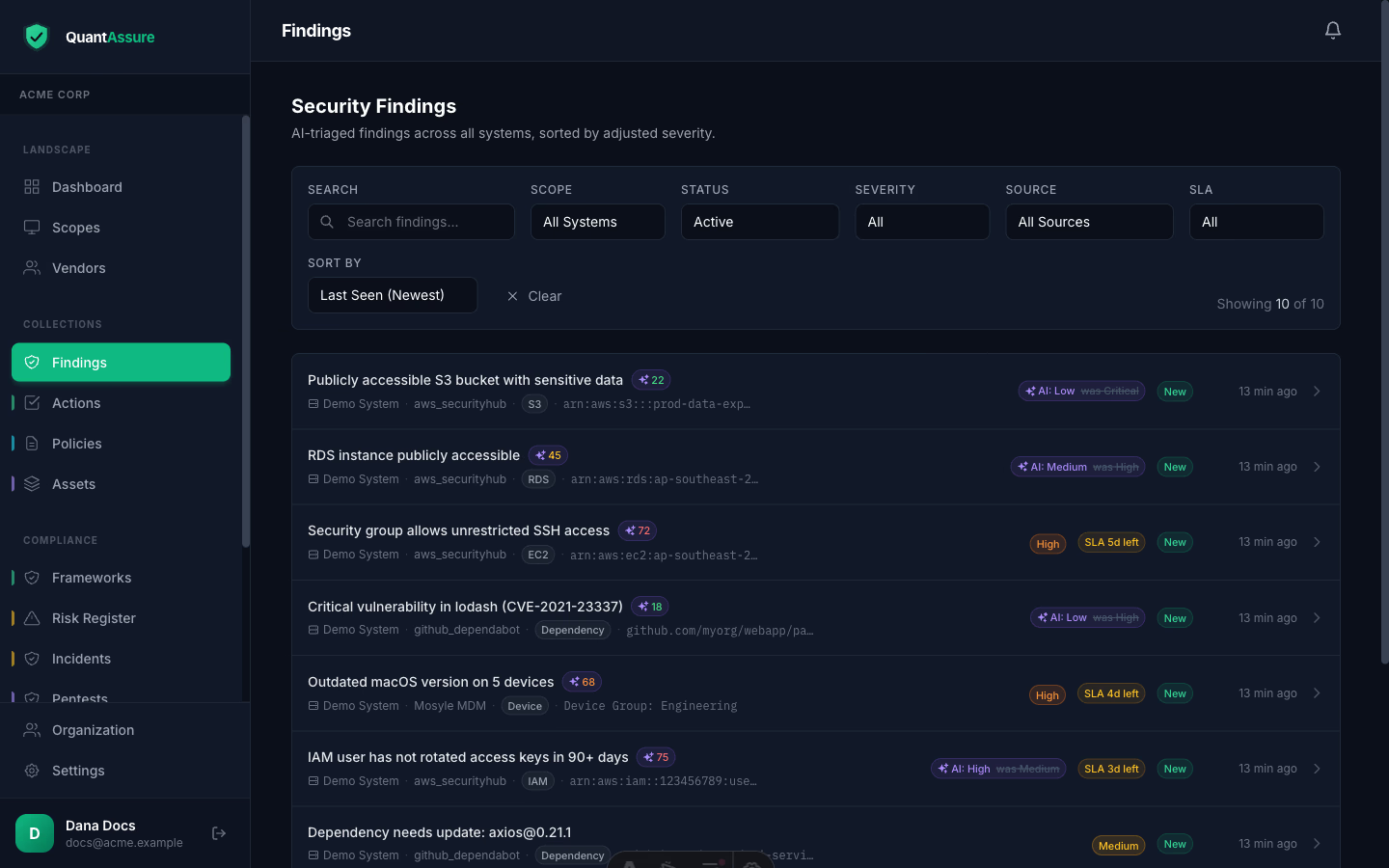
Findings are sorted by AI-adjusted severity by default. Filter by scope, status, severity, source, or SLA state; search across titles and resources.
Two badges matter most:
-
AI: Low— the AI reclassified this finding. The strikethrough shows the original scanner severity; nothing is hidden.was Critical - Risk score chip (0–100) — fine-grained prioritisation within a severity band.
Your first hour: keep the default sort (AI-adjusted severity, then risk score) and work from the top — that ranking is the same one the dashboard's Attention Needed list uses. Anything still rated critical or high after AI triage is a genuine priority, not scanner noise.
Why Severities Change — and How to See the Reasoning
Raw scanner severities don't know your environment. QuantAssure's AI weighs each finding against context it has collected: is the vulnerable dependency actually reachable at runtime? Is the system production or a sandbox? Do compensating controls (SCPs, network policy, VPN-only access) already mitigate it? What do your security policies say?
Click any reclassification badge to see the decision:
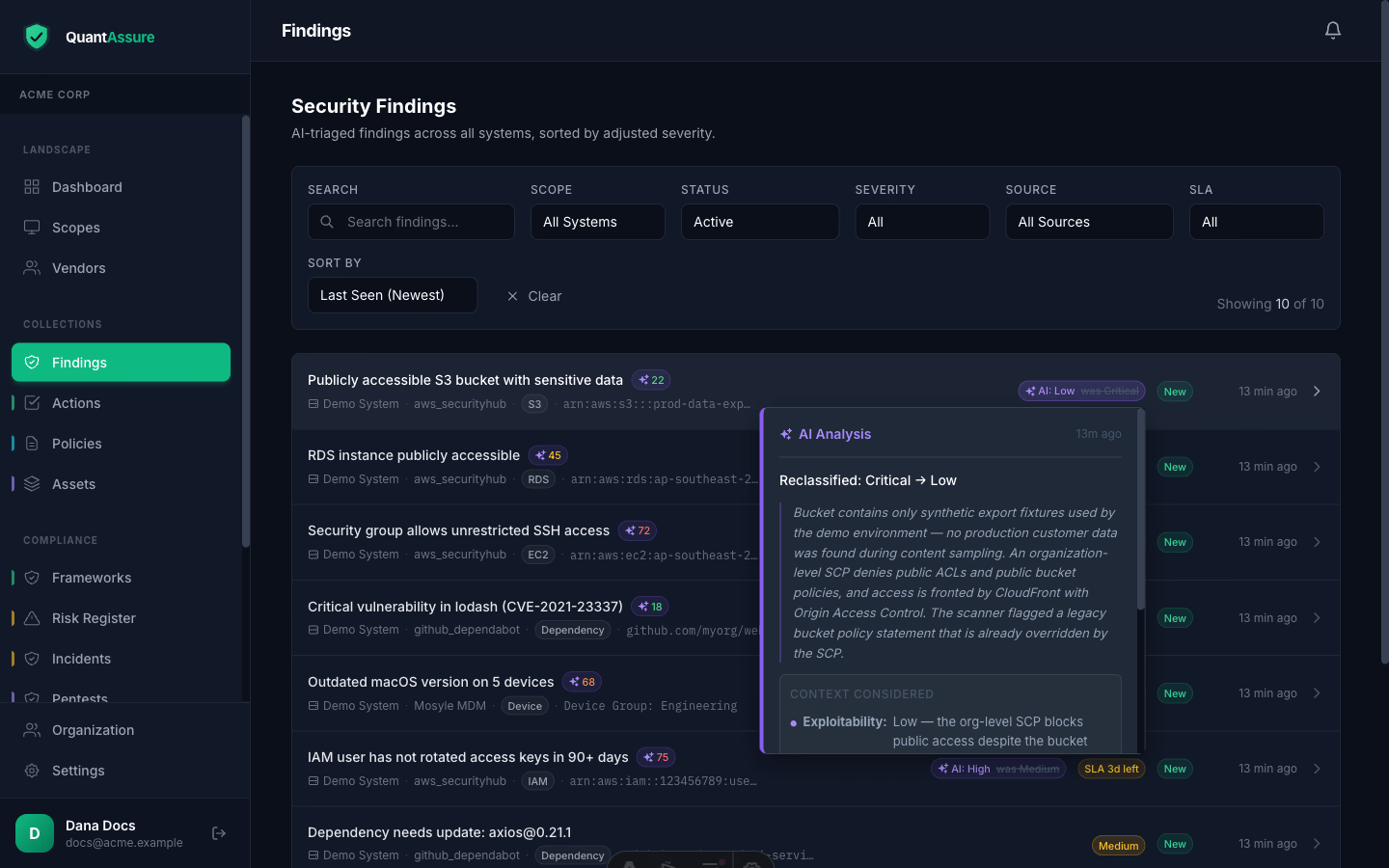
The popover shows the reclassification, the full reasoning, exploitability assessment, the context considered, and when the analysis ran. The original severity is preserved forever — the AI adjusts the working severity, never rewrites history.
A "Critical" Dependabot alert in a CI-only transitive dependency might be reclassified to "Low" — because the actual risk is minimal. The reclassification badge and reasoning make that decision inspectable, and the AI Decision Audit Trail report makes it exportable.
Finding Detail
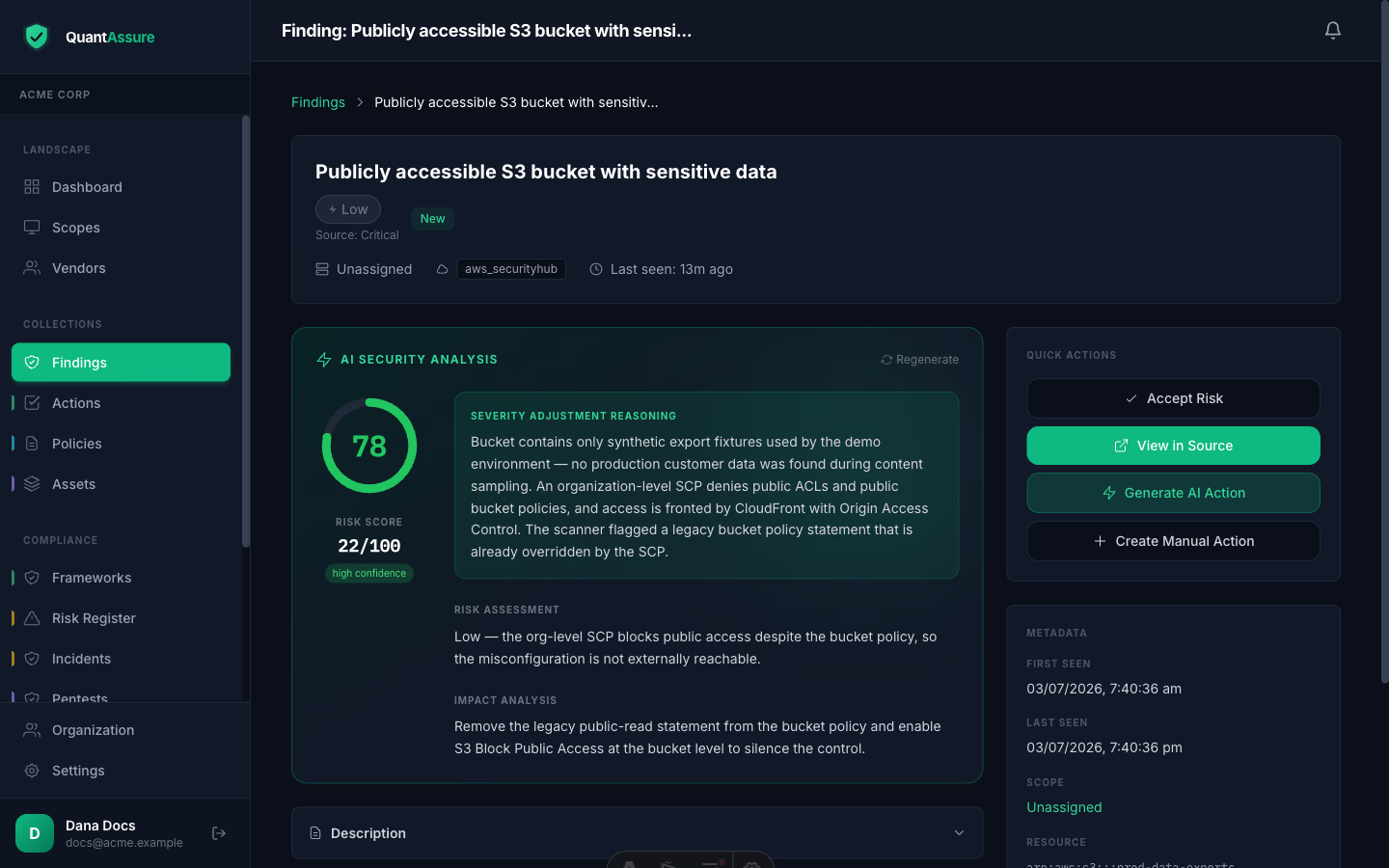
The detail page carries the full picture: dual severity display, the AI's reasoning (shown even when the AI confirmed the original severity), technical details, linked policies and controls, and remediation actions. Status changes (open → in progress → resolved / accepted / dismissed) are audit-logged with the actor.
Acting on Findings
Remediation
Some findings offer automated fix actions that can be applied directly from the dashboard:
- GitHub: Create a pull request to update the vulnerable dependency
- Mosyle: Push a compliance policy to affected devices
To apply a fix:
- Click "Fix" on the finding detail page
- Review the proposed change before confirming
- QuantAssure will execute the remediation action
Risk Acceptance
For findings you've assessed and decided to accept rather than remediate:
- Click "Accept Risk" on the finding detail page
- Provide justification for accepting the risk
- Set an expiry date (when the risk should be reassessed)
- Submit for approval (if your organisation has configured approvals)
Accepted findings are tracked in the Risk Register report and don't count against your security posture score.
Dismissing
For false positives or irrelevant findings:
- Click "Dismiss" on the finding detail page
- Dismissed findings are hidden from default views
- They can be restored later if needed
Risk acceptance vs dismissing: Use risk acceptance for real security issues you've chosen to accept. Use dismissing for false positives and findings that aren't actually security issues.
Trust, but Verify
Every AI decision is itself evidence: reclassifications are written to the audit log per finding, and the AI Decision Audit Trail report exports every decision — including confirmations — with reasoning, for any period. If you disagree with a decision, set the status accordingly (accept the risk, dismiss, or remediate anyway); your decision is logged alongside the AI's.
Findings and Compliance
Findings are automatically mapped to relevant ISM controls by QuantAssure's AI:
- Linked findings appear as evidence on control detail pages
- Resolving findings improves your compliance readiness score
- The AI considers your findings when assessing control implementation status
See Evidence Collection for details on how findings support your compliance reporting.
Next step → Set your SLA policy — every open finding already has a remediation clock running; tune the deadlines to your organisation.